Forti Analzyer Report 출력 시 10,000행 이상 출력하는 방법
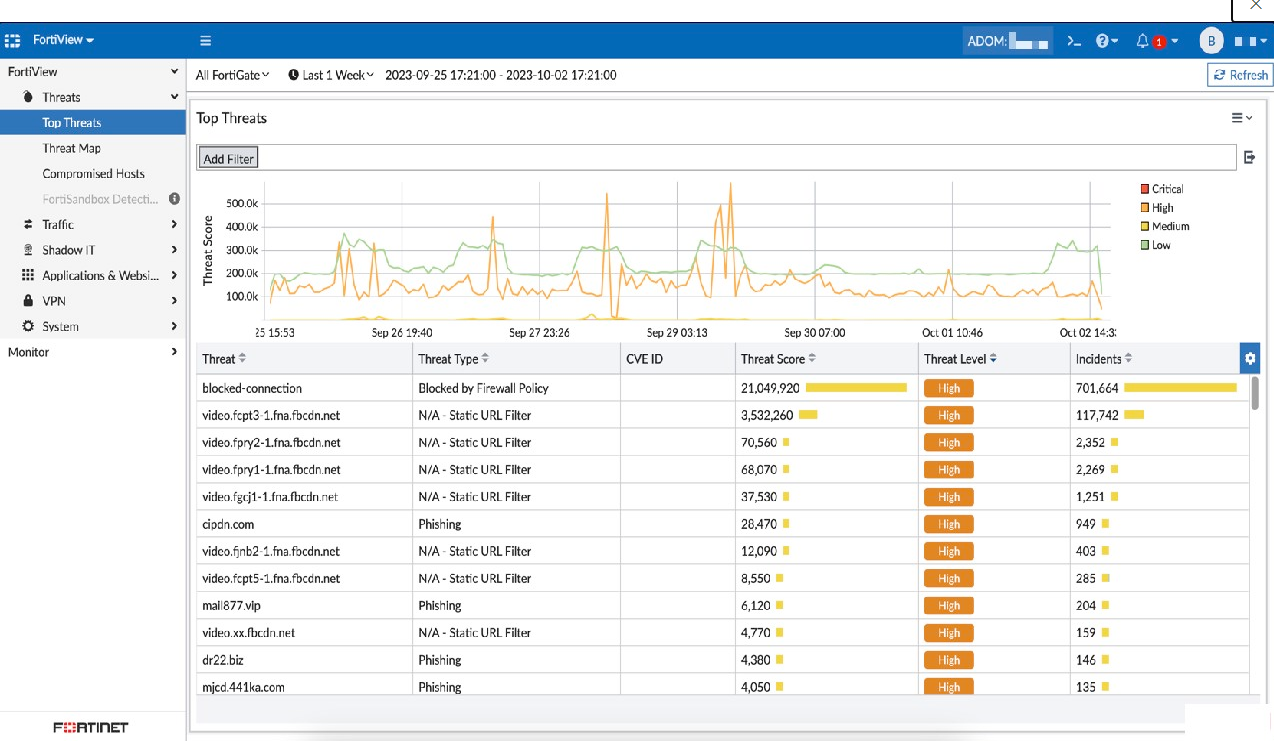
방화벽 Anaylzer 에서 Report 기능을 사용할 때 최대 10,000 행까지만 Reporting 이 되며,
CLI 명령을 통해 100,000 행까지 출력가능합니다..
1. Report 시 최대 행(Row) : 10,000
- 아래와 같이 설정 시 최대 10,000 Row 까지 Report 가능
Chart Library = 0 , All Report(Allow save Maximum) = 10,000
2. 최대 행(Row)에 영향을 받는 요소
- Chart Library 와 All Report 에서 두 곳에서 설정할 수 있으며, Chart Library 의 항목이 우선순위가 높습니다.
i. All Reports > Settings > Advanced Settings > Allow save maximum (1 ~ 10,000)
ii. Chart Library > Edit Chart > 제일하단 Show Top (0 for all results)
3. Report 시 고려사항
A. 장기간의 Log 를 Report 할 경우 가장 오래된 시간부터 Count 해서 10,000 줄을 출력합니다.
B. 그러므로, 최근 Log 는 누락될 수 있습니다.
4. 해결방법
A. CLI 명령을 통해 기본 10,000 Row Reporing 되는 설정을 100,000 Rows 까지 늘릴 수 있음
B. 명령어 : URL 참조 (https://kb.fortinet.com/kb/documentLink.do?externalID=FD35229 )
FortiAnalzyer 를 CLI로 접속 후 해당 명령어 입력
FAZ1000F # config system report setting

(setting)# show
config system report setting
    set max-table-rows 100000
    set aggregate-report enable
end

(setting)# set max-table-rows
Please    input integer value(10000-10000000).


(setting)# set max-table-rows 10000

(setting)# end
5. 100,000 Line 변경 후 조회 방법
A. 일반적으로 Chart Library 에서는 “0” 으로 설정하고 All Reports 에서 “10,000” 으로 설정해서 많이 사용하실 겁니다.
B. 10만줄로 만들었을 경우에는 우선순위가 높은 Chart Library 에서 Reporting 할 Rows 를 설정해야 합니다.
C. Chart Library 와 All Report 에 둘 다 설정했을 경우 All Report 의 설정 값은 무시
*. Log 조회시 시간열을 확인할 필요가 없을 경우에는 쿼리문에서 timestamp 설정을 제외하여 행(Row) 을 줄일 수 있습니다.
"IT Lab 허브로 돌아가기“
'IT Lab > 네트워크 스케치' 카테고리의 다른 글
| [FortiAnalyzer] 1줄 = 1세션이 아니다? 장기 세션 (2분 이상) 로그 기록 주기 완벽 정리 (0) | 2026.05.01 |
|---|---|
| [네트워크 트러블슈팅] Ping은 나가는데 특정 포트만 죽는다? 비대칭 라우팅 이슈 (2) | 2026.04.25 |
| 광케이블과 광트랜시버 완벽 가이드 (2) | 2025.11.11 |
| 초보도 이해하는 L4 분산 방식: 라운드 로빈(RR), 해시(Hash), 스티키(sticky) 핵심 정리 (3) | 2025.08.27 |
| 다수의 Cisco Switch Configuration Backup 을 위한 Python Script (4) | 2024.11.30 |
| Fortigate DDNS Server 를 Load 할 수 없을 경우 해결법 (3) | 2022.12.03 |
| 시스코 무선랜컨트롤러(WLC)에서 무선AP 가 사라졌다면? (20) | 2022.07.31 |
| Cisco WLC Mac Filtering & ACS MAC 일괄 등록 및 삭제 (13) | 2022.07.02 |


